
Follow the steps below to submit a new request or check the status of an existing support request. Before submitting a ticket, please take a look at our FAQ page for some helpful information.
Enter a ticket
-
Navigate to the support ticket entry screen.
-
Select Create a Support Ticket from the main help page, or
-
Select Submit a Ticket from the dashboard.
-
-
Select Submit a request.
-
Fill out the Ticket form.
-
Enter Subject. A headline description of your problem or request.
-
Enter Description. Supply details of your problem or request.
-
Select Region/Zone.
-
Enter Contact Phone.
-
Enter Steps to reproduce the issue. Provide as much detail as possible, including the pages, tiles, menus, or other relevant information prior to encountering the problem.
-
Add Attachments. Include any attachments that help provide insight into the problem, such as a screenshot.
-
-
Select Submit.
Check your ticket
-
Navigate to the support ticket entry screen.
-
Select Create a Support Ticket from the main help page, or
-
Select Submit a Ticket from the dashboard.
-
-
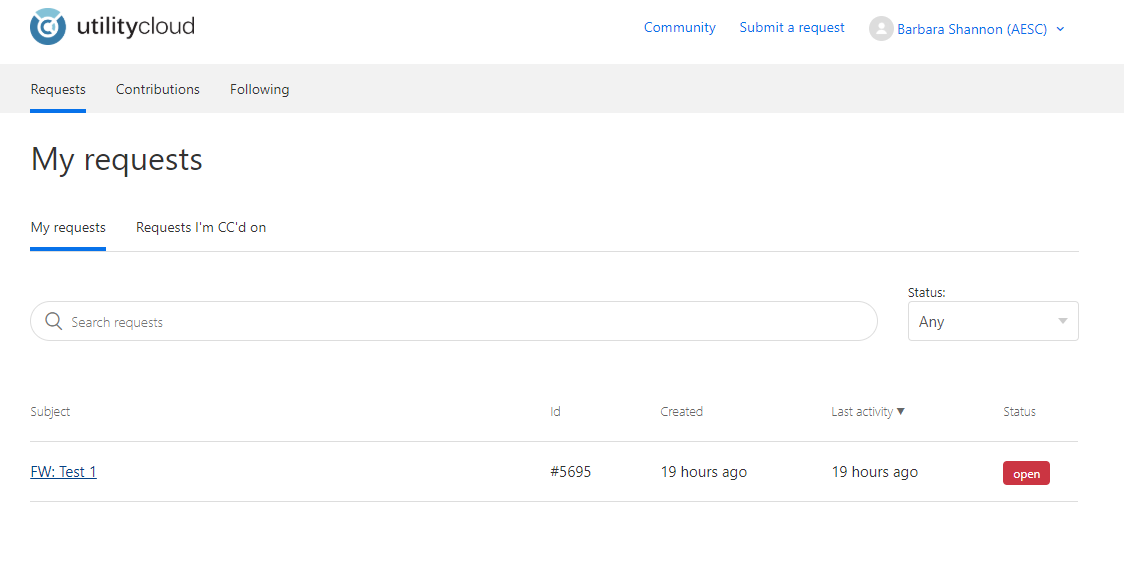
Select your name in upper right-hand corner.
-
From the drop down, select My activities.
A table of open requests appear. You can select between My Requests and Requests I'm CC'd on. -
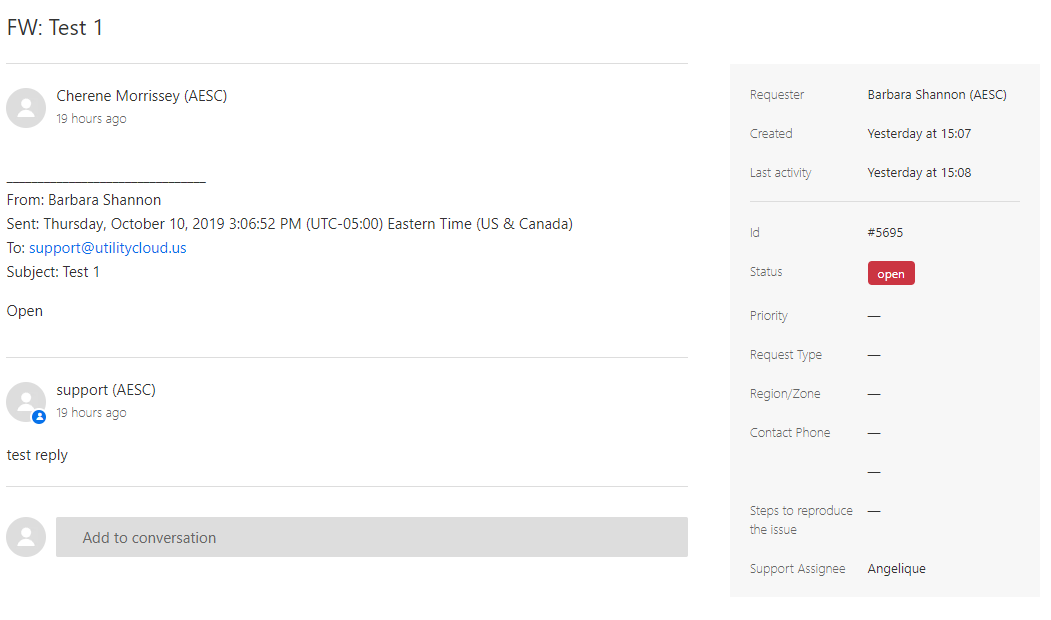
Select the request Subject to view and update details of the request.
Ticket status
Tickets have one of four possible status values as described in the following table.
|
Status |
Definition |
Action |
|---|---|---|
|
Open |
Utility Cloud is working on the ticket. |
No action required. |
|
Awaiting your reply |
Utility Cloud needs more information from you to proceed with resolving the ticket. |
Update the ticket with the requested information. |
|
On-hold |
Utility Cloud is waiting on information from a third party. |
No action required. |
|
|
Utility Cloud has requested information 3 times while in "Awaiting your reply" status. |
Update the ticket with the requested information. |
|
Solved |
Utility Cloud has resolved the issue. |
No action required. |
Related articles